> ## Documentation Index
> Fetch the complete documentation index at: https://docs.sherloqdata.io/llms.txt
> Use this file to discover all available pages before exploring further.

# Import queries from Datagrip

> Import you exsiting saved queries / consoles

<Note>
  We're working on making this extraction automatic with the click of a button, and it will be launched soon.
</Note>

<AccordionGroup>
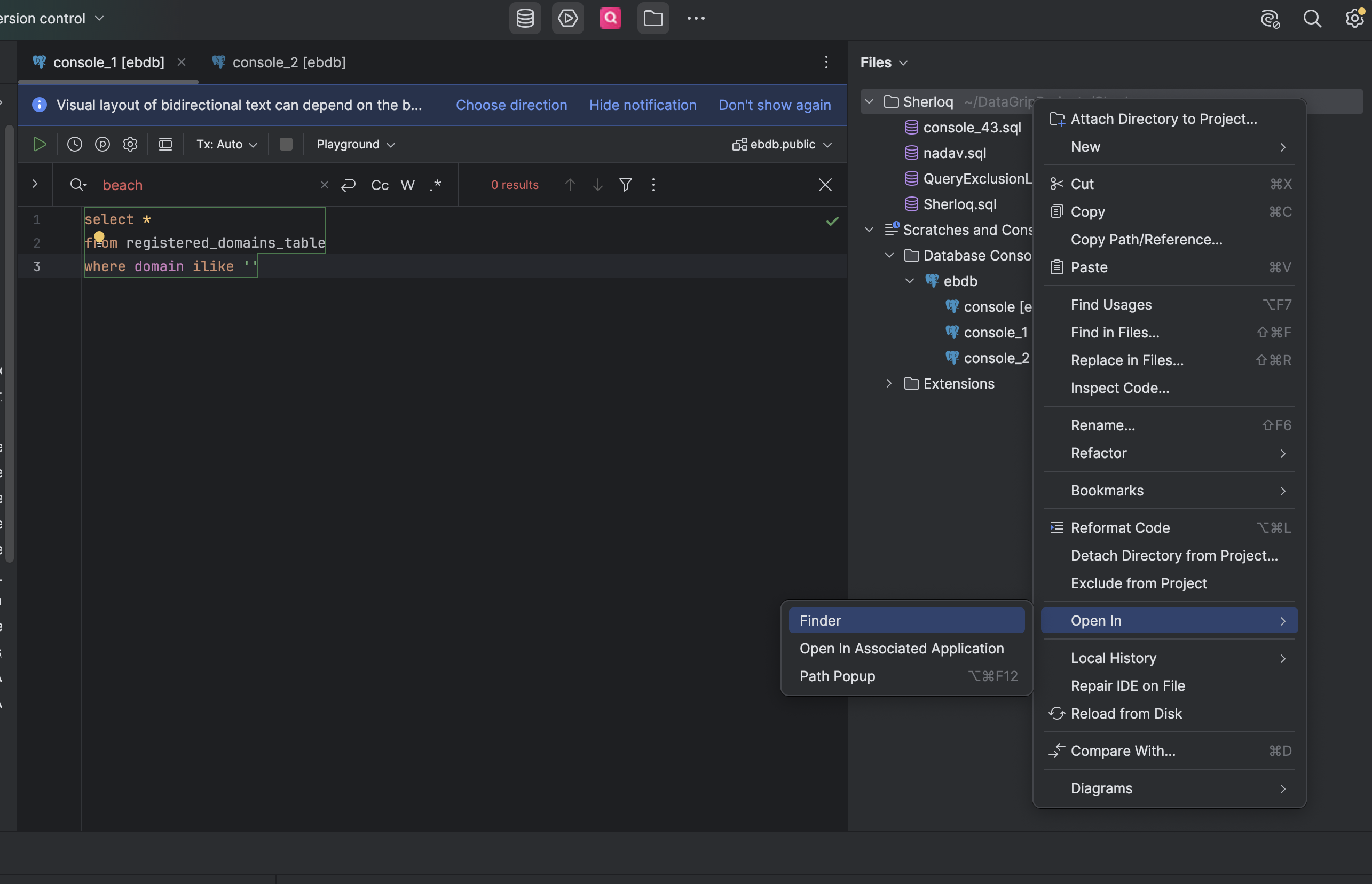
  <Accordion title="Import from files">
    <img src="https://mintcdn.com/sherloq-31da1dfe/tD9AIrHANoNaF5Xm/images/dg_import_files.png?fit=max&auto=format&n=tD9AIrHANoNaF5Xm&q=85&s=2c65cd6a0675ad3e3914c417fcfdb013" alt="" width="2570" height="1656" data-path="images/dg_import_files.png" />

    <Steps>
      <Step title="Go to DataGrip and open files CMD+2 or ALT+2" />

      <Step title="Right click on the relevant folder -> Open in -> Finder/Location" />

      <Step title="Drag and drop the folder/files into the Upload a file in the Sherloq uploader " />
    </Steps>
  </Accordion>

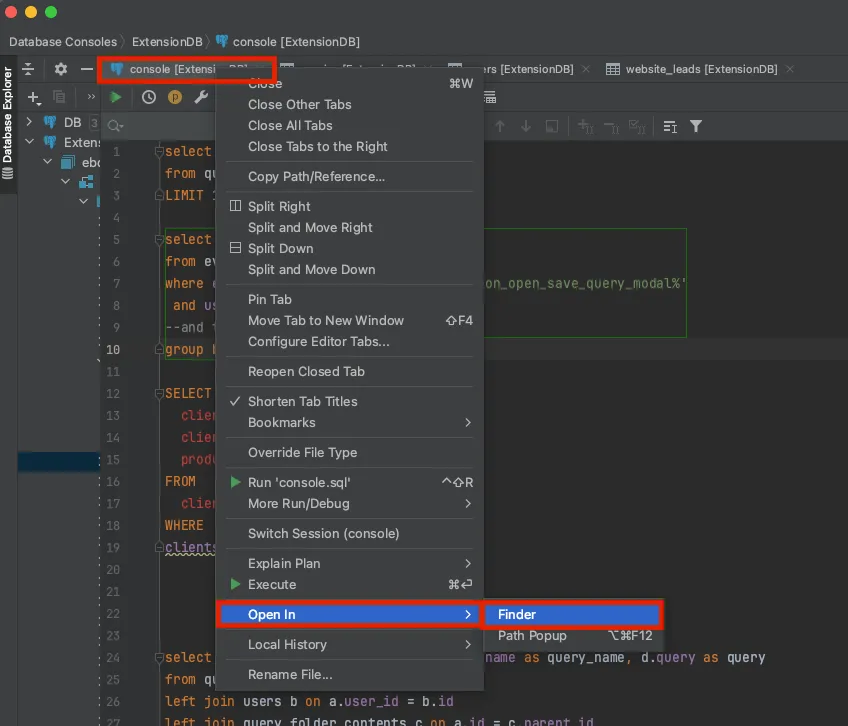
  <Accordion title="Import from console">
    <Steps>
      <Step title="Go to DataGrip" />

      <Step title="Right click on the console tab" />

      <Step title="Click `Open In` -> `Finder`" />

      <Step title="Drag and drop the file into the Upload a file in the Sherloq setting " />

      <Step title="Repeat for any open console tab" />
    </Steps>

    <img src="https://mintcdn.com/sherloq-31da1dfe/tD9AIrHANoNaF5Xm/images/dg_import_1.png?fit=max&auto=format&n=tD9AIrHANoNaF5Xm&q=85&s=7f7924e6a0376e1b1d0c1f68d24ec0a3" alt="" width="848" height="726" data-path="images/dg_import_1.png" />
  </Accordion>

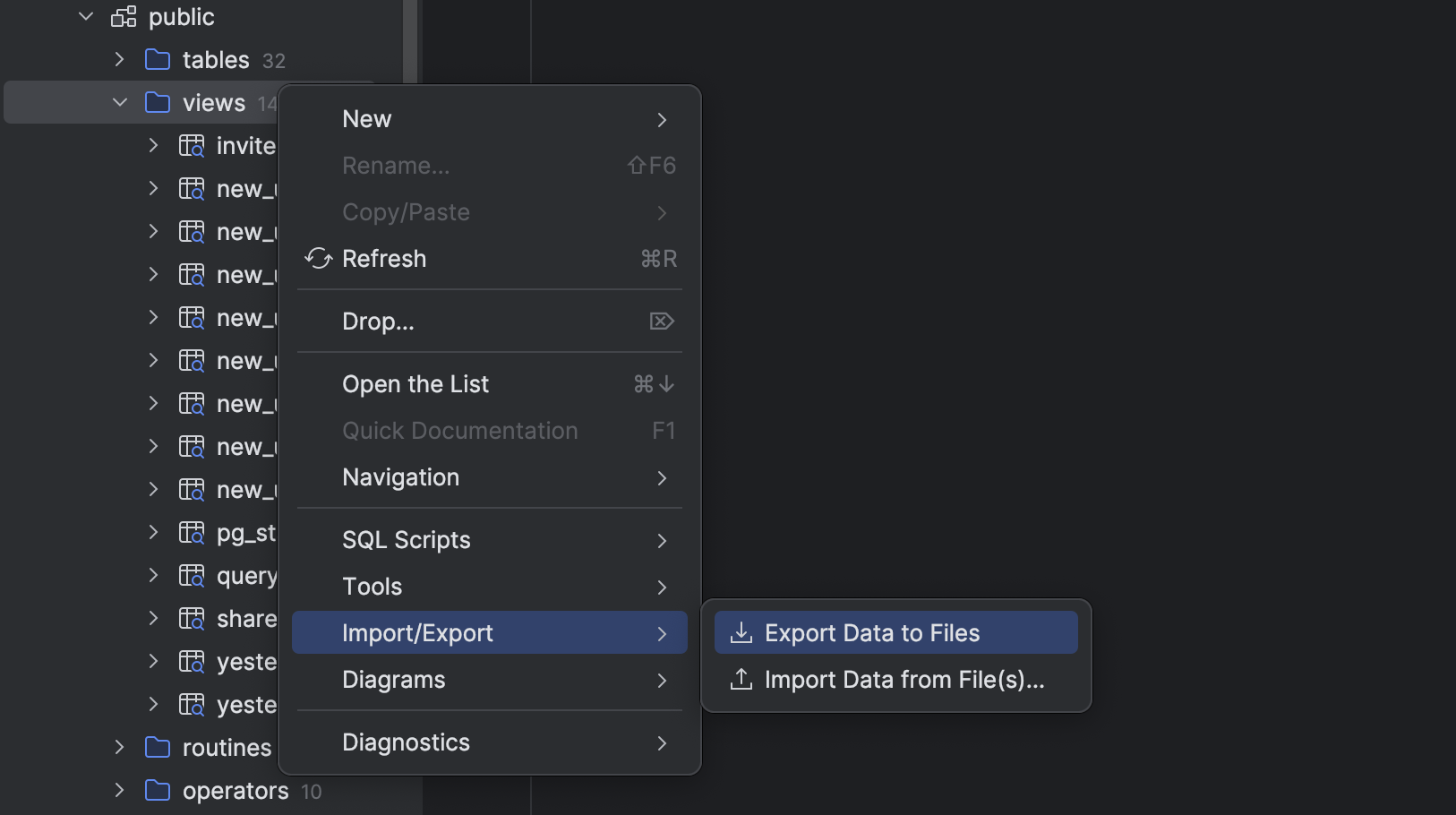
  <Accordion title="Import from views">
    <img src="https://mintcdn.com/sherloq-31da1dfe/tD9AIrHANoNaF5Xm/images/dg_import_views.png?fit=max&auto=format&n=tD9AIrHANoNaF5Xm&q=85&s=158fc47ef05ca19602d38c153ef97ae5" alt="" width="1626" height="910" data-path="images/dg_import_views.png" />

    <Steps>
      <Step title="Go to DataGrip " />

      <Step title="Right click on the views folder -> Import/Export -> Export Data" />

      <Step title="Drag and drop the folder/files into the Upload a file in the Sherloq uploader " />
    </Steps>
  </Accordion>

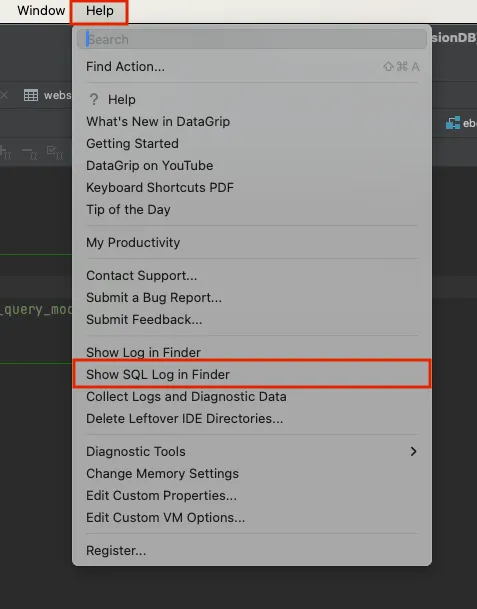
  <Accordion title="Import from history logs">
    <Steps>
      <Step title="Go to DataGrip" />

      <Step title="Click on the upper DataGrip Menu" />

      <Step title="Click `Help` -> `Show SQL Log in Finder`" />

      <Step title="Drag and drop the file into the Upload a file in the Sherloq setting " />
    </Steps>

    <img src="https://mintcdn.com/sherloq-31da1dfe/tD9AIrHANoNaF5Xm/images/dg_import_2.png?fit=max&auto=format&n=tD9AIrHANoNaF5Xm&q=85&s=9d74d95e080176cfd86ed9d9debcff56" alt="" width="477" height="609" data-path="images/dg_import_2.png" />
  </Accordion>

  <Accordion title="Copy-paste from SQL from console">
    <Steps>
      <Step title="Go to your DataGrip console" />

      <Step title="Mark the SQL you’d like to import / CTRL + A for all of it ->  Copy it - CTRL + C" />

      <Step title="Create a new TXT or DOC file and paste it, then save the file" />

      <Step title="Drag and drop the file into the Upload a file in the Sherloq setting " />
    </Steps>
  </Accordion>
</AccordionGroup>