> ## Documentation Index
> Fetch the complete documentation index at: https://docs.sherloqdata.io/llms.txt
> Use this file to discover all available pages before exploring further.
# Invite to Sherloq
> Start creating your Sherloq workspace to collaborate directly within your editor.
In the settings view, click on the “Invite” button, and enter your teammates’ emails, separated by commas (e.g., [`nadav@sherloqdata.io`](mailto:nadav@sherloqdata.io)`, noy@sherloqdata.io`).
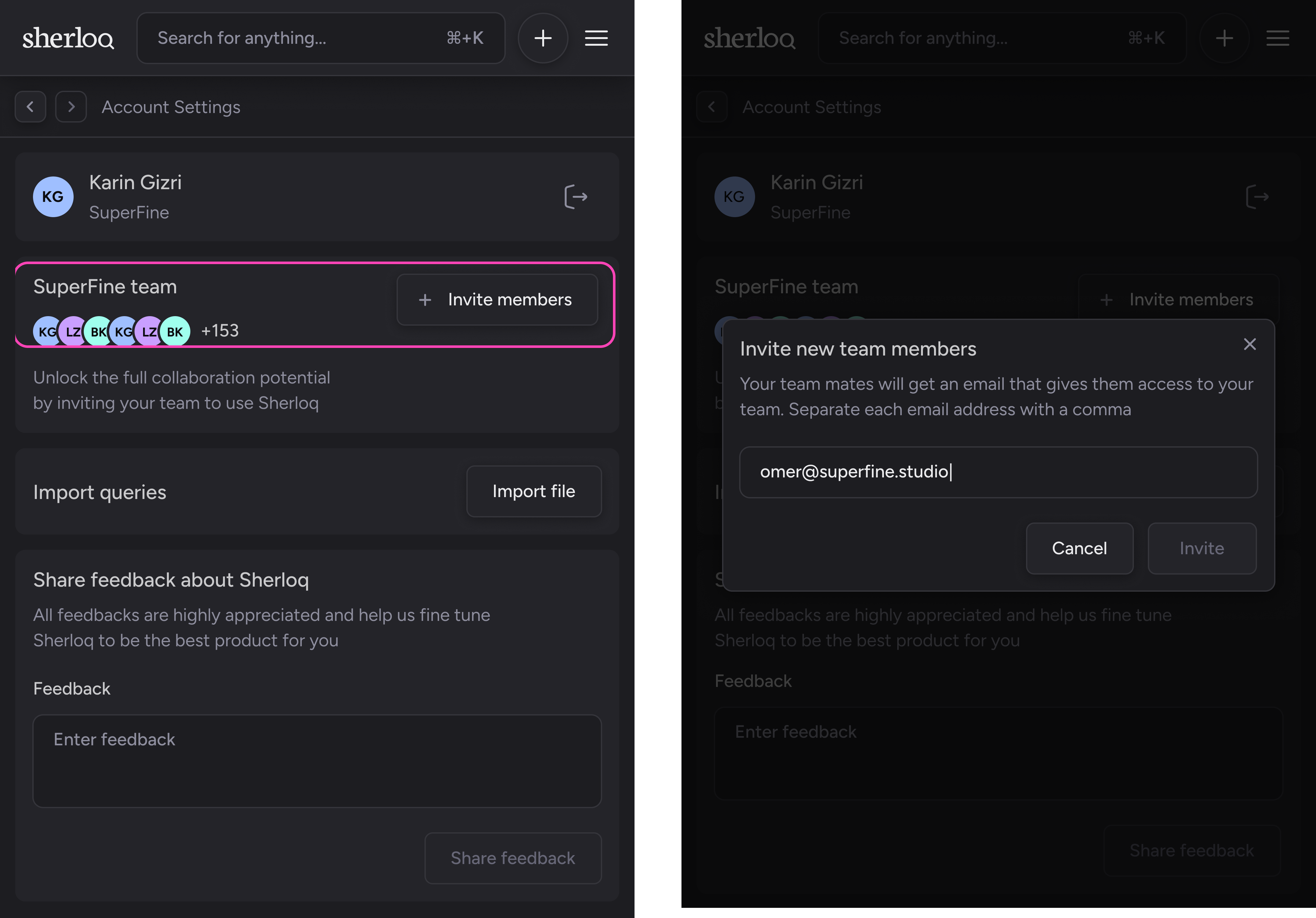 This will send an automatic email to your teammates, inviting them to join Sherloq.
Once they accept the invite, they will join your Sherloq workspace. You can then share the folder with them to collaborate.
You can invite and collaborate in a shared workspace only with teammates who have the same email domain.
* To learn how to share a folder, click [here](https://docs.sherloqdata.io/sharefolder#share-folder).
* To learn more about how to give permissions for each user, click [here](https://docs.sherloqdata.io/permissions).
**Tip 2:** Import your team’s shared queries into a shared folder by following the import queries guide [here](https://docs.sherloqdata.io/importqueries#import-queries).
Teams using Sherloq can save up to 4 hours per week on data asset discovery!