> ## Documentation Index
> Fetch the complete documentation index at: https://docs.sherloqdata.io/llms.txt
> Use this file to discover all available pages before exploring further.
# Save a New Query
You can also save queries directly from your IDE using the keyboard shortcut cmd/ctrl + shift + 9
Another convenient way to save queries is through the Sherloq "bubble" - a button that allows you to save directly from the editor.
You can choose to dismiss this feature based on your personal preferences.
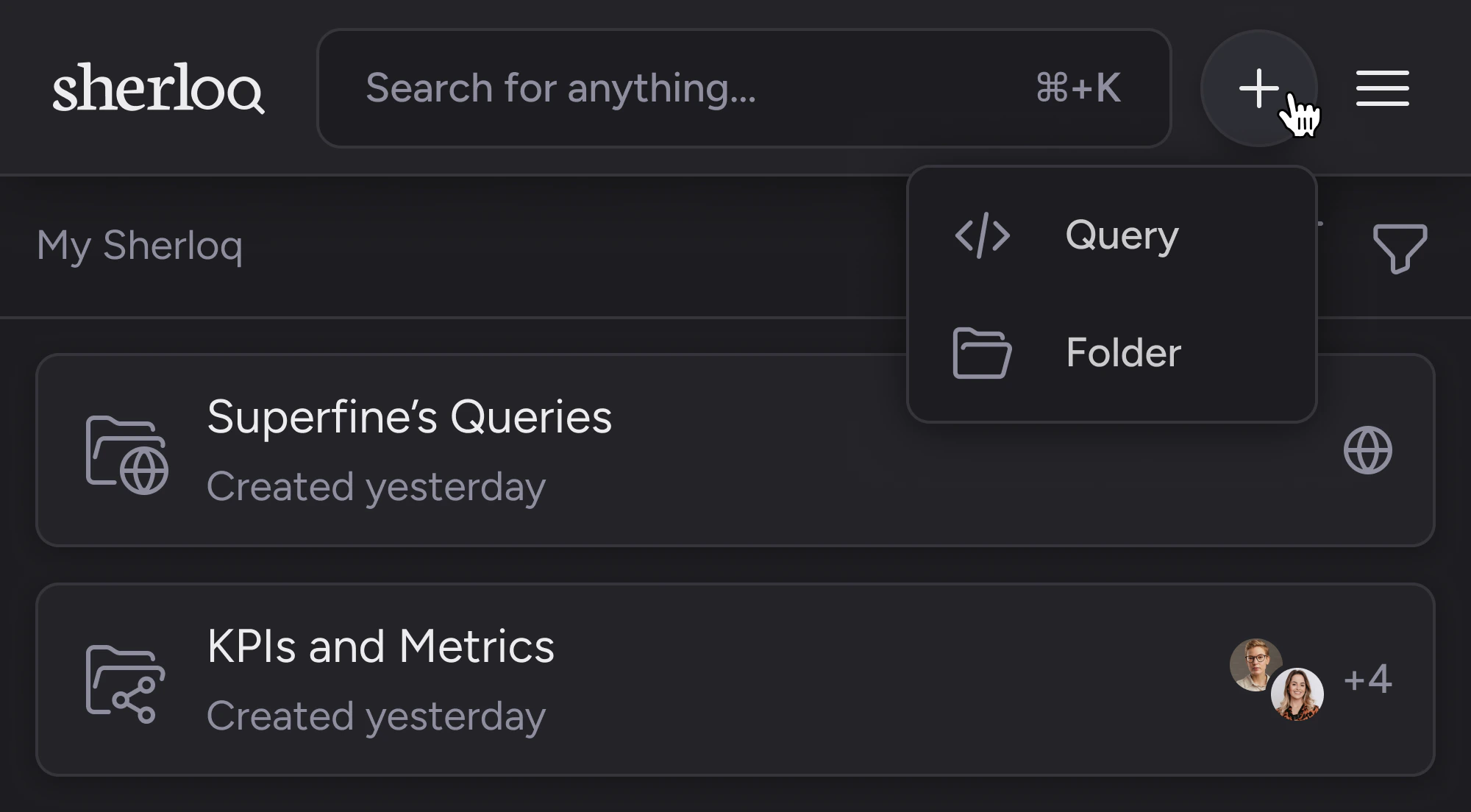
To save a **new query** in Sherloq, click the `+` button and select `Query`.
 In the new modal, fill out the query, name, description, and location (each query must be located in a folder or subfolder.).
**Using AI**, once you enter the query in the text box, you will have the option to generate an auto-title and auto-description to your queries in order to save your time.
These keywords will be helpful for refining your search in future use.
In the new modal, fill out the query, name, description, and location (each query must be located in a folder or subfolder.).
**Using AI**, once you enter the query in the text box, you will have the option to generate an auto-title and auto-description to your queries in order to save your time.
These keywords will be helpful for refining your search in future use.
 After completing the form, click "Save".
Yay, you just saved a query! 🎉
After completing the form, click "Save".
Yay, you just saved a query! 🎉